Downloading from ExamTools & session manager Import
Downloading the correct files from ExamTools, importing into Laurel session manager, cleaning up the record, and preparing the ENC file.
Reference document: The Hybrid Exam Workflow document is the authoritative guide for this process. This lesson is based on Version 1.11 (21 June 2026). Confirm you have the current version before each session cycle.
Lesson Objectives
- Download the correct files from ExamTools after the session
- Import data into Laurel session manager and clean up the record
- Identify and remove no-show applicants from session manager
- Create the ENC file using the correct applicant selection method
What to download and prepare
Download the following two files — the order does not matter, as long as both are saved before you continue.
-
1
Confirm all CSCEs have been emailed
Before downloading any files, confirm that CSCEs have been emailed to all applicants who earned one.
-
2
Download Laurel SessionManager file from ET
In ExamTools under DOWNLOAD, select “Laurel SessionManager.” Save to a dedicated session folder named per your team’s naming convention.
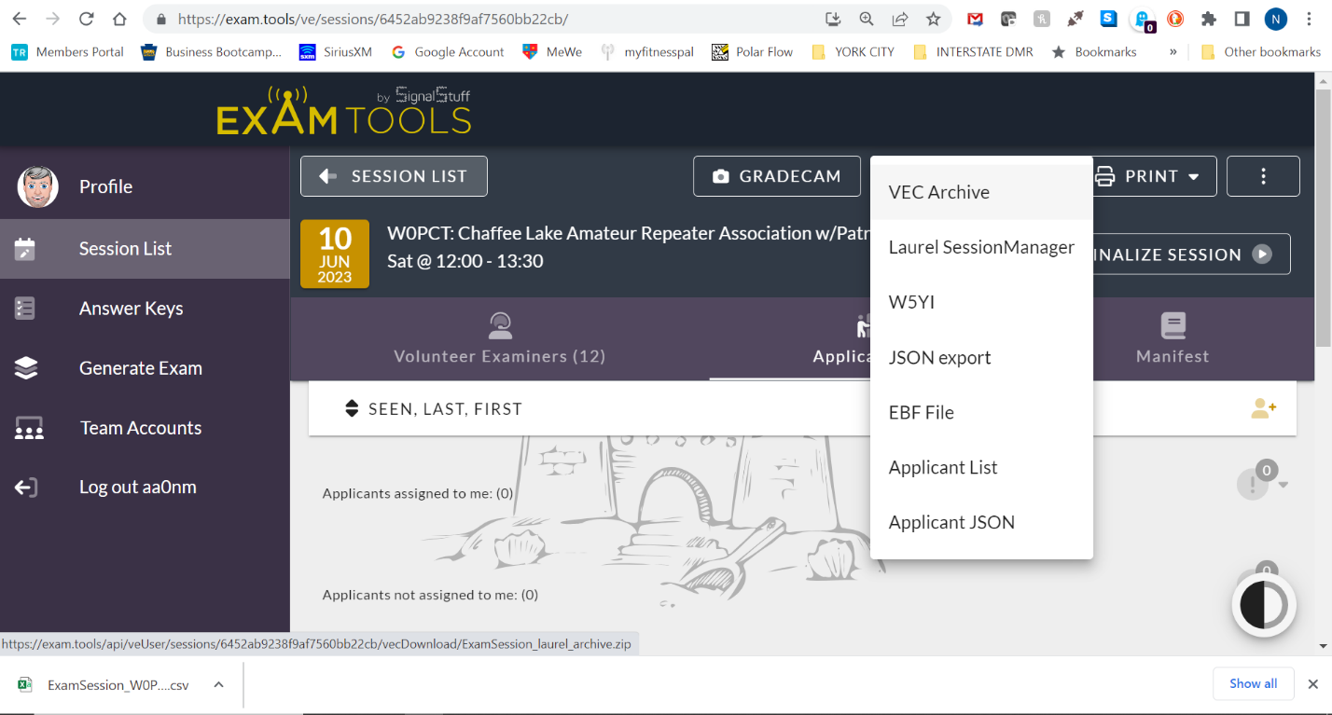
Fig. A — “Laurel SessionManager” as it currently appears in ExamTools, under the PRINT menu (see flag below). -
3
Download Final Forms
Under PRINT, select “Final Forms.” This opens as a PDF. Save to the session folder.
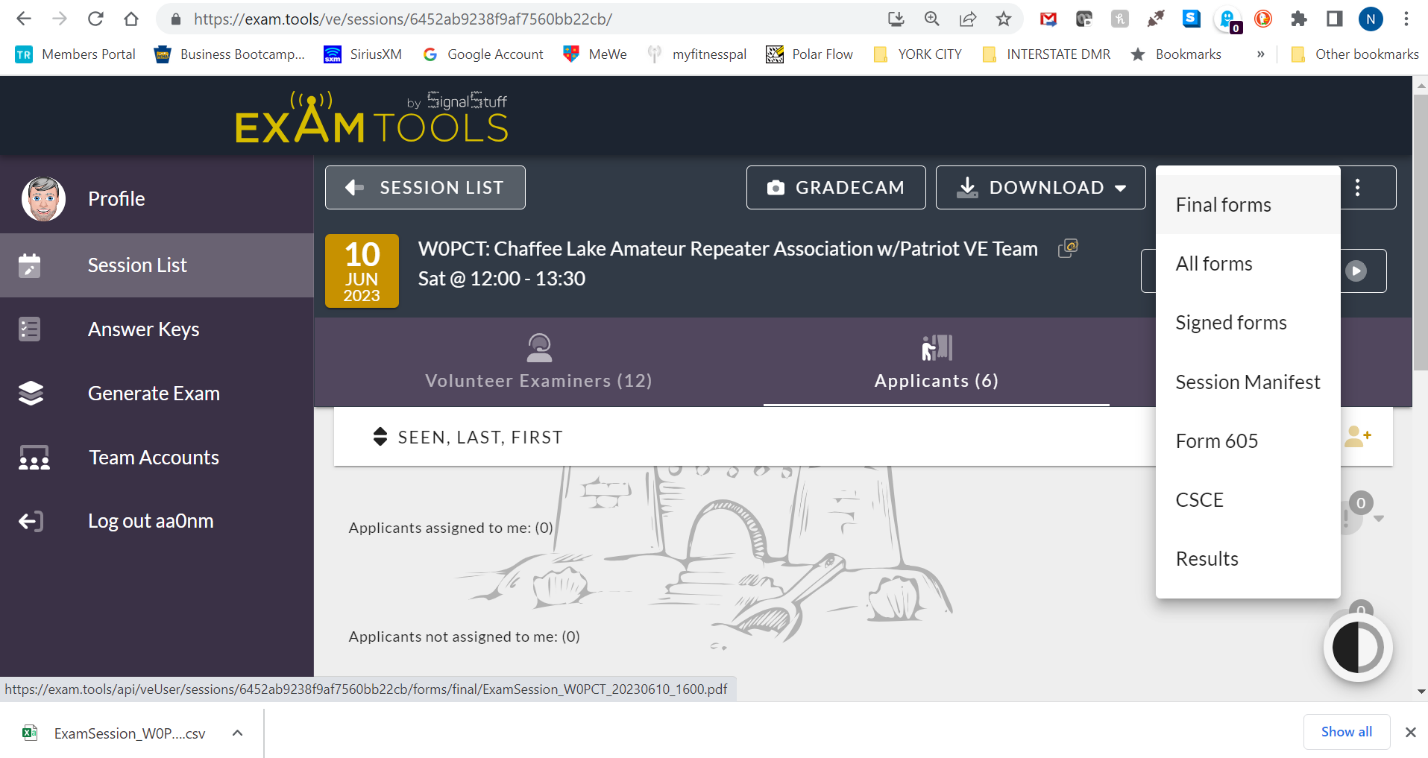
Fig. B — “Final forms” as it currently appears in ExamTools, under the DOWNLOAD menu (see flag below). -
4
Verification documents
Scan evidence of element credit or prior license. Attach these after the ET files for that specific applicant. If from a publication like QST, highlight the applicant’s entry. Crop all scans to the document — no desk surfaces.
-
5
Note paper
Scan any applicant scratch paper. Save to the folder for retention. Does not need to be attached to the session file, but retain it in case of queries.
No VE sign-in sheet required. Sessions conducted within ExamTools do not require a separate VE sign-in sheet, as long as all VEs present are logged in to ExamTools for that session — their participation is already recorded there.
session manager import steps
-
1
Create the session
Create the session in the Laurel session manager software.
-
2
Update session fields
Update “Session Manager Call Sign” and “Session Manager Phone Number” on the main page as needed.
-
3
Import application data
Under TOOLS → Import Application Data, select the file downloaded from ET. VEs who signed CSCEs will be updated automatically from this import.
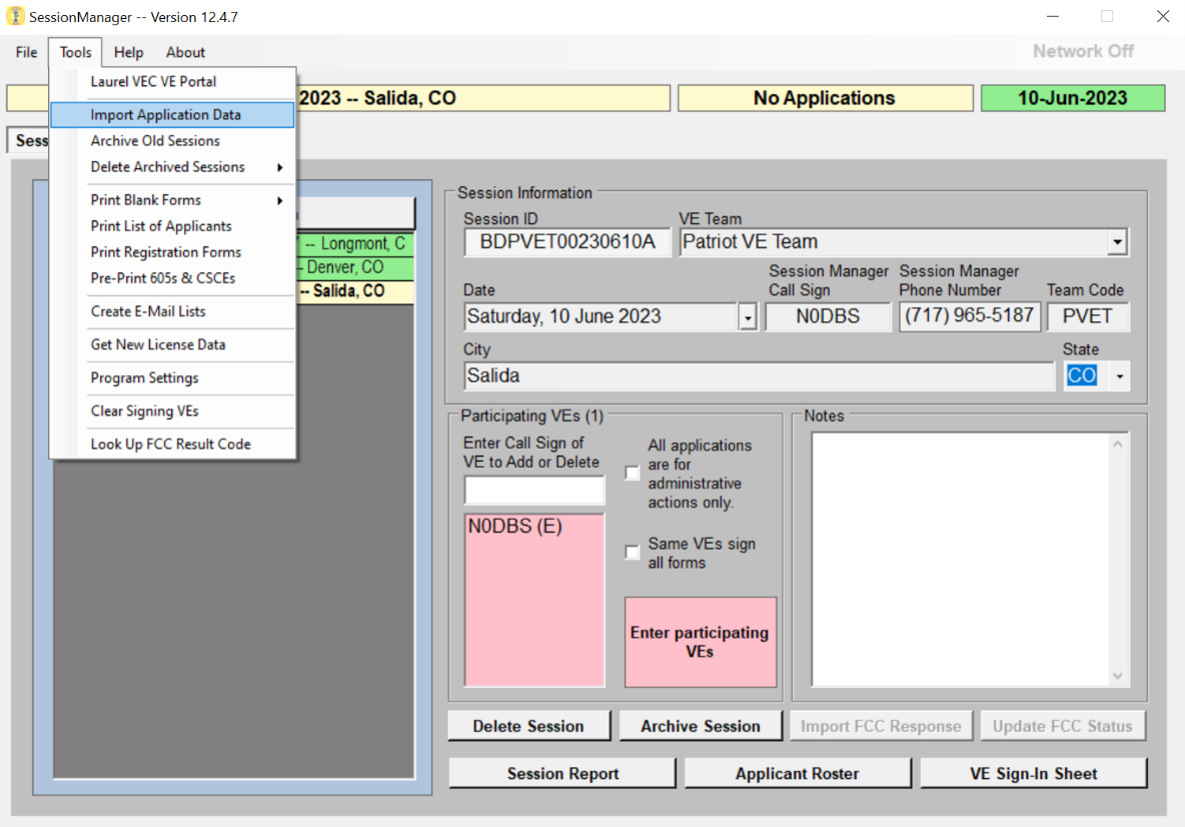
Fig. 1 — session manager Tools menu. Select Import Application Data and choose the file downloaded from ET. -
4
Add missing VEs manually
VEs who did not sign any CSCEs will not appear after import. Add them manually to ensure complete VE sign-in records.
-
5
Review each applicant
Check for errors. Delete any no-shows — they appear as a black box with white letters in the applicant list on the left of the screen. You can choose to delete no-shows within ExamTools before downloading, in which case they will not appear in Laurel session manager after import, or leave them in ExamTools and delete them here instead.
Selecting applicants and creating the upload file
All applicants currently in session manager are automatically included by default. Use Ctrl+Click to deselect any applicant you need to exclude (such as one with a pending FCC application), then click Create ENC File. This creates the ENC file in C:\SessionManager\UploadFiles.
What determines the ENC file’s contents: The ENC file is built from whatever data currently exists in Laurel session manager at the time you create it — including any no-shows you’ve deleted, VEs you’ve added manually, and applicants you’ve excluded via Ctrl+Click. It is not a direct copy of the file downloaded from ExamTools. That downloaded file is only the source session manager uses to import and build its own records in Part B; everything after import happens inside session manager itself.
Made an error? If you accidentally include someone who should be held, go to the UploadFiles folder, delete the file (verify by filename and date), and redo the selection.
References: ExamTools Documentation • Laurel VEC P&P
| ← Overview |