Running the Session
Applicant setup at the table, starting ExamTools, reading required instructions, monitoring, and grading — for both computer and paper exams.
Lesson Objectives
- Set up applicants correctly for computer and paper exams
- Recognize and respond to the six ExamTools visual cues
- Monitor effectively without violating Laurel VEC monitoring rules
- Grade computer exams in ExamTools and paper exams using GradeCam
Computer exam setup
Before the session is officially started, each computer exam applicant needs to be set up at their table. The assigned VE assists with the following:
- Assign yourself to the applicant in ExamTools — only if you hold the license class required for the element being taken. If not qualified, notify a qualified VE immediately.
- Assist with internet connection. Navigate applicant to the exam session webpage at exam.tools
- Provide the session call sign (the call sign the session is listed under). The applicant should already have their PIN from registration — the VE can look it up and provide it if they forgot to bring it.
- Instruct the applicant to wait on the join screen — they must not proceed until the session is officially opened by the Session Leader
Assigned the wrong VE by mistake? If a VE is assigned to the wrong applicant — not a qualification issue, just an error — it’s easy to correct. The VE can remove themselves from the applicant in ExamTools, or a VE Admin, Owner, or Co-Owner can remove them and assign the correct VE instead.
Refer to the swim lane diagram (also on the VEC-03 overview page, and downloadable below) for the full context of where monitoring fits in the session flow.
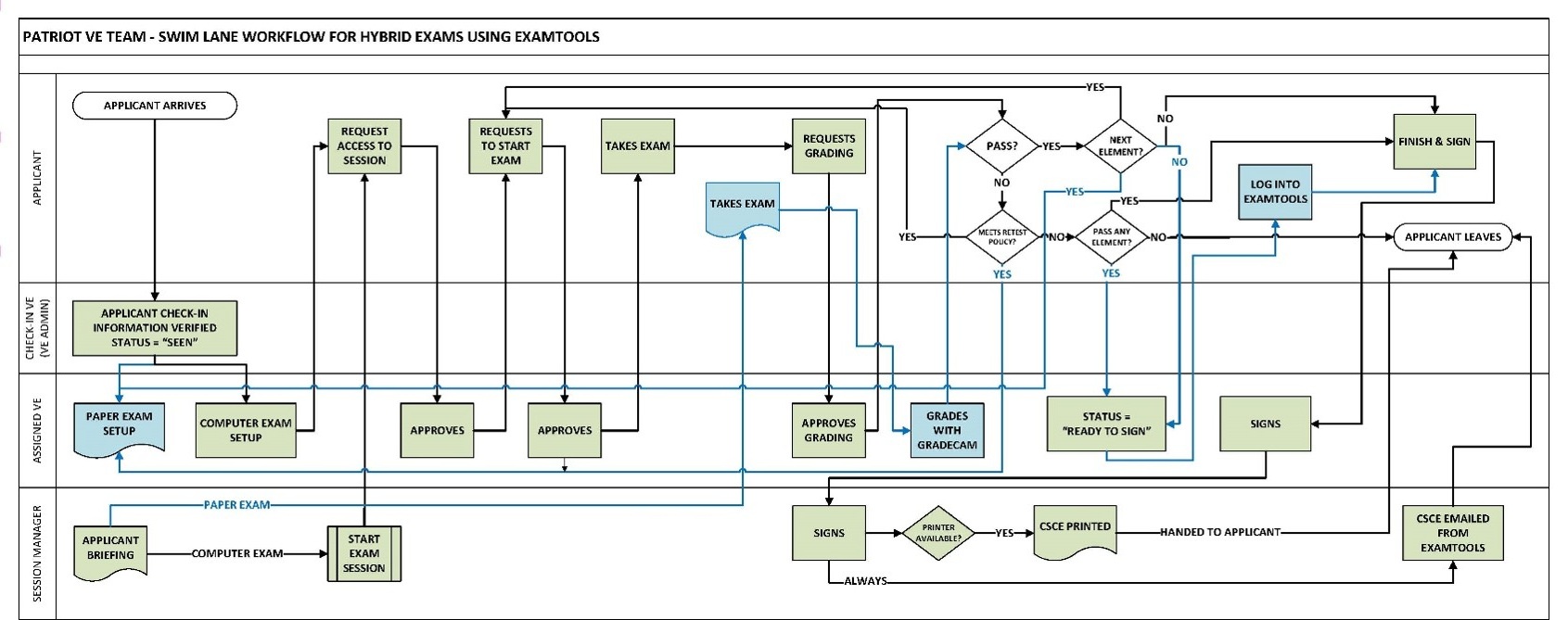
Downloadable reference: Hybrid Swim Lane Workflow (PDF) ↓ — a printable version of the swim-lane diagram showing the full session flow across the Session Leader, Assigned VE, Check-in VE (VE Administrator), and Applicant roles.
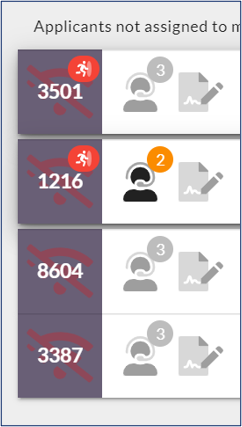
Do not stare at the progress bar. Per P&P App. 4 Sec. 2.19 and FCC Sec. 97.509, VEs must observe applicant behavior — not fixate on the progress bar. You may check progress occasionally via the ET menu, but your primary attention must be on the applicant.
Monitoring behaviors to watch for
- Constantly looking around the room to locate VEs
- Attempting to block the VE’s view of the screen
- Using two hands or typing on the device — ExamTools requires only scrolling and a single click
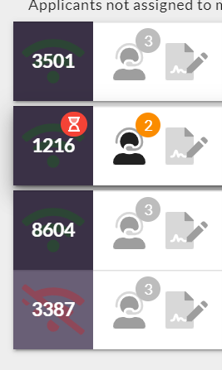
Applicant PIN 1216 has been in the session for 45 minutes. You notice they have been glancing toward the door frequently and appear to be using both hands on the keyboard. What should you do?
Applicant’s computer freezes or disconnects mid-exam
If an applicant tells you their computer has frozen or kicked them out of the session, have them log back into the exam session. ExamTools retains their answers up to the point of disconnection, and they can continue from where they left off. VEs will see the applicant’s status icon change to show they are no longer logged in, and then change again to show them requesting to rejoin.
Grading computer exams in ExamTools
When the applicant requests grading (hourglass icon appears), the assigned VE approves the grading request in ExamTools.
- Passed: applicant may take the next element — or proceed to signing
- Failed — eligible to retest according to your team’s policy: a different exam version must be used if using paper
- Failed — not eligible to retest: instruct them to log off. They may leave
- Copy of answers requested: notify the Session Leader
Grading paper exams with GradeCam
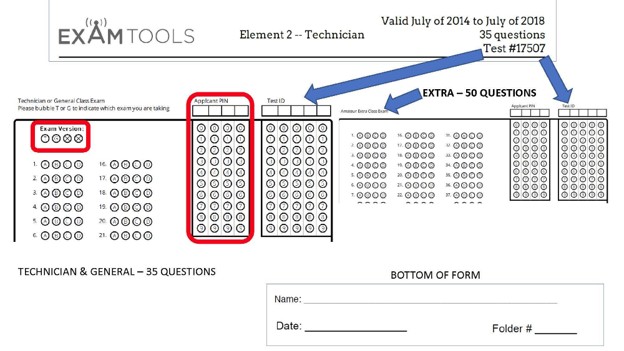
Before scanning, confirm all three required fields are on the answer sheet:
- PIN is recorded
- Exam booklet number is recorded
- “T” or “G” element letter is marked
Troubleshooting: GradeCam won’t read the sheet
If GradeCam can’t read an answer sheet, check these two things, in order:
- Bubbles, not just numbers written on the page: Confirm the PIN, exam booklet number, and T/G element letter are all filled in as properly bubbled dots corresponding to the correct digits and letter — not just handwritten in the margin.
- Pencil type: If all three fields are correctly bubbled and GradeCam still won’t read the sheet, the issue may be the pencil. On rare occasions, certain pencils use a graphite that GradeCam’s camera can’t pick up. If this happens, have the applicant go over their answers with a Sharpie, or complete a new answer sheet using a Sharpie.
Hold the answer sheet in front of a laptop camera (use a folder or rigid backing) or lay it on the table and use a tablet. Record the result, circle pass or fail, and initial. Tell the applicant their result. Return the question booklet to the correct location. Pass the graded answer sheet promptly to the Session Leader.
References: ExamTools Documentation • Laurel VEC P&P
| ← Lesson 4 |