ExamTools Roles & Session Setup
The four ET access levels, session creation, and what to prepare before applicants arrive.
Lesson Objectives
- Identify the four ExamTools permission levels and what each can do
- Assign the correct ET role to each team member before the session opens
- Complete all pre-session setup tasks including portal listing and equipment check
Registering with ExamTools
Once a team is approved to use ExamTools, individual VEs must register with ExamTools themselves — this is a separate step from any Laurel VEC portal registration. ExamTools has access to the Laurel VEC VE database, so once a VE’s registration is approved, ExamTools automatically creates them a profile matched to their team. If the VE is a Team Leader, their ExamTools profile is automatically granted Owner status.
Four roles in every ET session
ExamTools uses four distinct roles within a session. These are specific to ExamTools and are separate from Laurel VEC roles. Assign them before the session opens. Full definitions at docs.exam.tools/docs/general/sessionrolespermissions
| ET Role | Authority | Typical assignment |
|---|---|---|
| Owner | Creates the session. Manages all details: starting, changing, finalizing. | Session Leader (TL or DTL) |
| Co-Owner (Team Lead) | Full permissions except session creation. Can start, edit, add VEs, change permissions, and finalize sessions and candidates on the Owner’s behalf. | Backup Session Leader or senior DTL |
| VE Administrator | Can edit applicant information (add phone numbers, change status), assign VEs to candidates, void candidate exams, and evict candidates. Cannot start, edit, or finalize sessions, or add/change VE permissions. Requires additional team training. | VEs handling check-in |
| VE Team Member | Monitors exams, authorizes candidates to join and begin testing, approves grading, and signs forms. Cannot edit applicant data or manage session settings. | All accredited VEs not doing check-in |
Note: these are the default permissions for each role. The Owner can grant additional permissions — including session creation — in the “Manage Team” settings within ExamTools (see below).
VE Admin editing authority requires additional training. VE Administrator level gives access to edit applicant records, void exams, and evict candidates. Assign only to experienced team members. Your team may have specific training requirements — confirm with your Team Leader. See ET role permissions for the full matrix.
Managing team member permissions
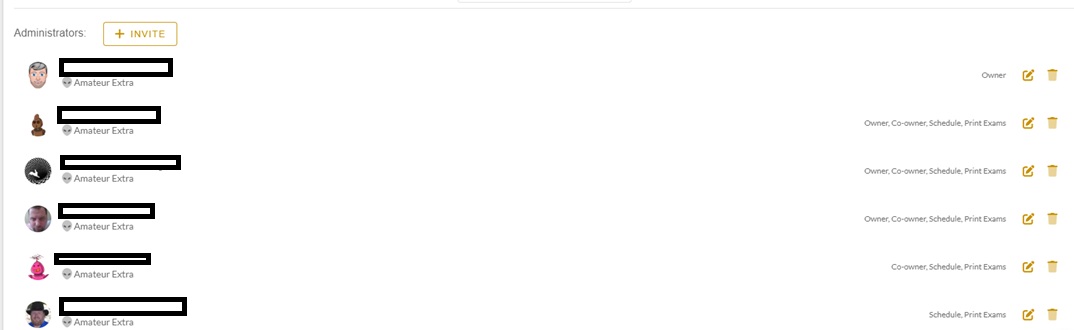
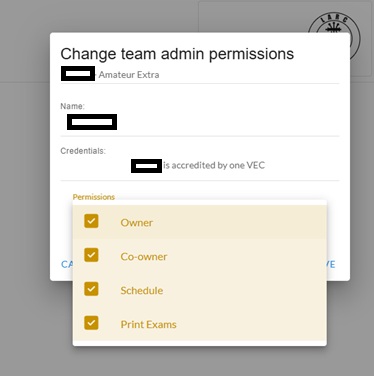
The Owner can set individual profiles for other team members from the Manage Team screen in ExamTools. From there, the Owner toggles four permissions per team member:
- Owner — whether this team member also holds Owner status
- Co-owner — whether this team member is automatically granted Co-owner status on any session they create
- Schedule — whether this team member is permitted to create/schedule a session
- Print Exams — whether this team member is permitted to print exams
Before applicants arrive
| Step | Action |
|---|---|
| 1 | Confirm session is listed in the Laurel VEC portal. This must be done before the session date and before any file upload. If not listed, add it first. |
| 2 | Confirm adequate qualified VEs. Minimum three. Verify license class against elements being offered. |
| 3 | Owner creates the session in ExamTools. Assign Co-Owner(s), VE Admins, and VEs to their correct access levels before check-in begins. |
| 4 | Prepare paper exam packets for applicants who choose paper. Question booklet plus answer sheet. |
| 5 | Verify internet connectivity (venue wifi, team hotspot, or phone hotspot). Test applicant devices if team-supplied. |
References: ExamTools Documentation • Laurel VEC P&P
| ← Lesson 1 |