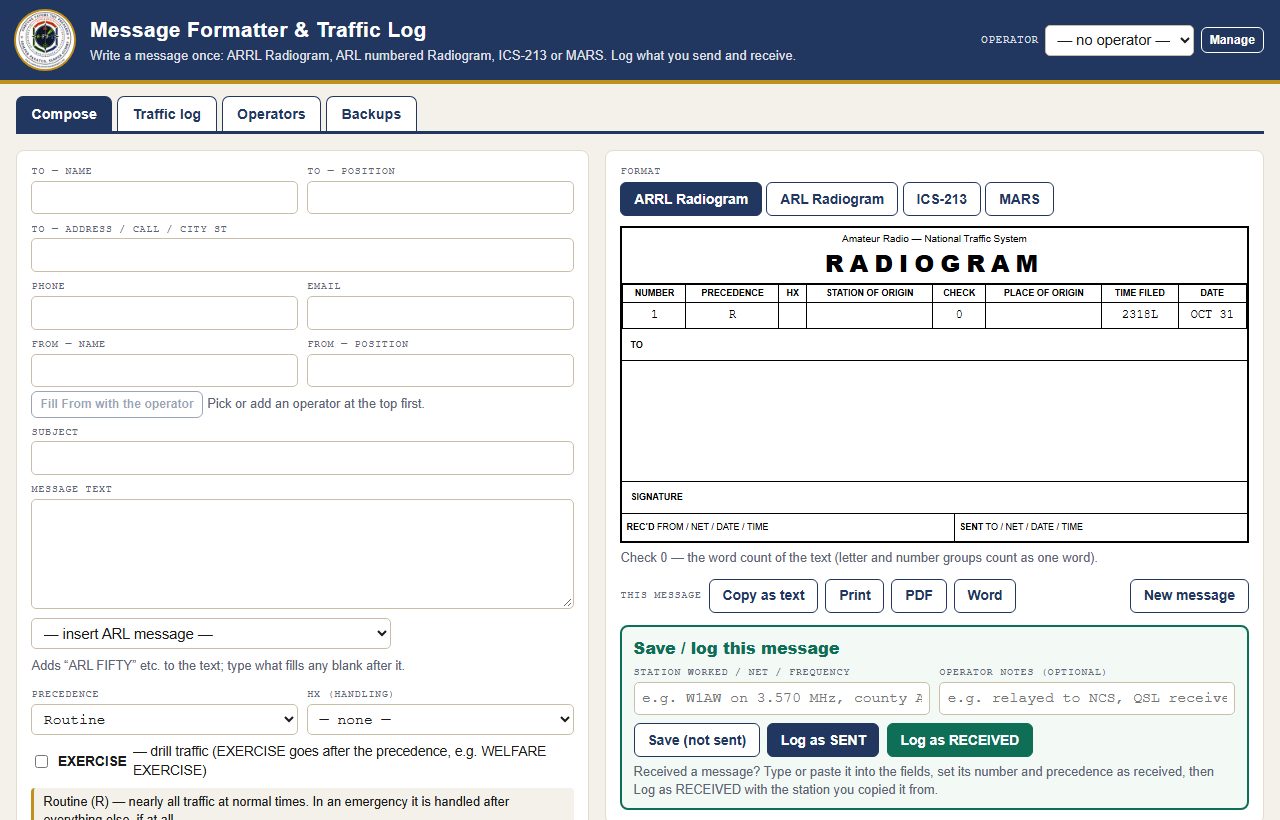
Write a message once and get it laid out as an ARRL Radiogram, an ARL numbered Radiogram, an ICS-213 General Message or a MARS message. Log everything you send and receive, then print the log as a full traffic log, an ICS-309 Communications Log or an ICS-214 Activity Log.
The Message Formatter & Traffic Log is a free tool from Fortune Favors the Prepared. It is a single web page that runs in your browser. There is nothing to install, no account and no internet needed once you have it.
Get the Message Formatter
Download the zip to keep a copy on your computer or USB stick, or open it straight in your browser.
Open the Message Formatter in your browser · One-page guide (PDF)
What It Does
Compose
One message, four formats
Fill in the message once and switch between ARRL Radiogram, ARL Radiogram, ICS-213 and MARS. The Radiogram check (word count) is worked out for you, and ARL numbers are spelled out. Copy as text, print, save as PDF or open in Word.
Traffic log
Every message, time-stamped
Log a message as sent or received, add operator notes, or save a message that has not been sent yet. Each entry is stamped with the time and the operator. Print the log, or save it as PDF, Excel or Word, as a full log, an ICS-309 or an ICS-214.
Operators
Who is on duty
Save the operators at your station and pick who is on duty. Their details fill the From line and the operator boxes on the ICS-309 and ICS-214.
Backups
Don’t lose the log
Snapshots are taken in the browser every few minutes. In Chrome or Edge you can also pick a backup folder, such as a USB stick or a synced folder, and a backup file is written there after every change.
Getting Started
- Download and unzipDownload the zip and unzip it somewhere you will find it again, such as your documents folder or a USB stick in your go-kit.
- Open it in your browserDouble-click Message_Formatter.html. It opens in Chrome, Edge or Firefox and works without an internet connection.
- Add your operatorsOn the Operators tab, save yourself (and anyone else at the station) and pick who is on duty.
- Write the messageOn the Compose tab, fill in the message and pick the format. Copy it as text to read over the air, or print it, save it as a PDF or open it in Word.
- Log itLog the message as sent or received. The Traffic log tab keeps a copy of each message and prints the log in the layout you need.
- Set up backupsOn the Backups tab, choose a backup folder (Chrome or Edge), or use Download backup now at the end of each session.
Where Your Data Is Kept
Everything you type stays in your browser, on your own device. Nothing is sent to Fortune Favors the Prepared or anyone else.
Keep a backup
A private or incognito window won’t save anything, and clearing your browser’s data erases the log. The tool warns you if the browser is not saving. Use a backup folder or Download backup now so you always have a copy, and Restore from a backup file to bring it back.
The copy in your browser belongs to that browser. If you open the downloaded file on your computer and also open the online copy, each keeps its own separate log, so pick one and stick with it.
The tool lays a message out in each format for practice and for real traffic. Always follow the procedures of the net, agency or MARS branch you are working with. The MARS layout is a simplified ACP-127 style; MARS members use the routing indicators and procedures in their MARS publications.
Learn the Formats
New to written traffic? Start with Radiogram, ICS-213 and MARS Message Formats, which explains each format part by part, then practise with the tool.
More on passing messages by radio is in Message Handling & Reporting Formats.
Message HandlingRemember, Fortune Favors the Prepared
Semper Paratus, Semper Gumby