VE Briefing & Applicant Check-in
Everything that happens before the first exam starts — from the VE team briefing to seating applicants at their tables.
Lesson Objectives
- Conduct a complete pre-session VE briefing
- Walk every applicant through all six check-in steps correctly
- Handle element credit, pending FCC applications, and felony disclosures
- Set the applicant’s status to SEEN in ExamTools
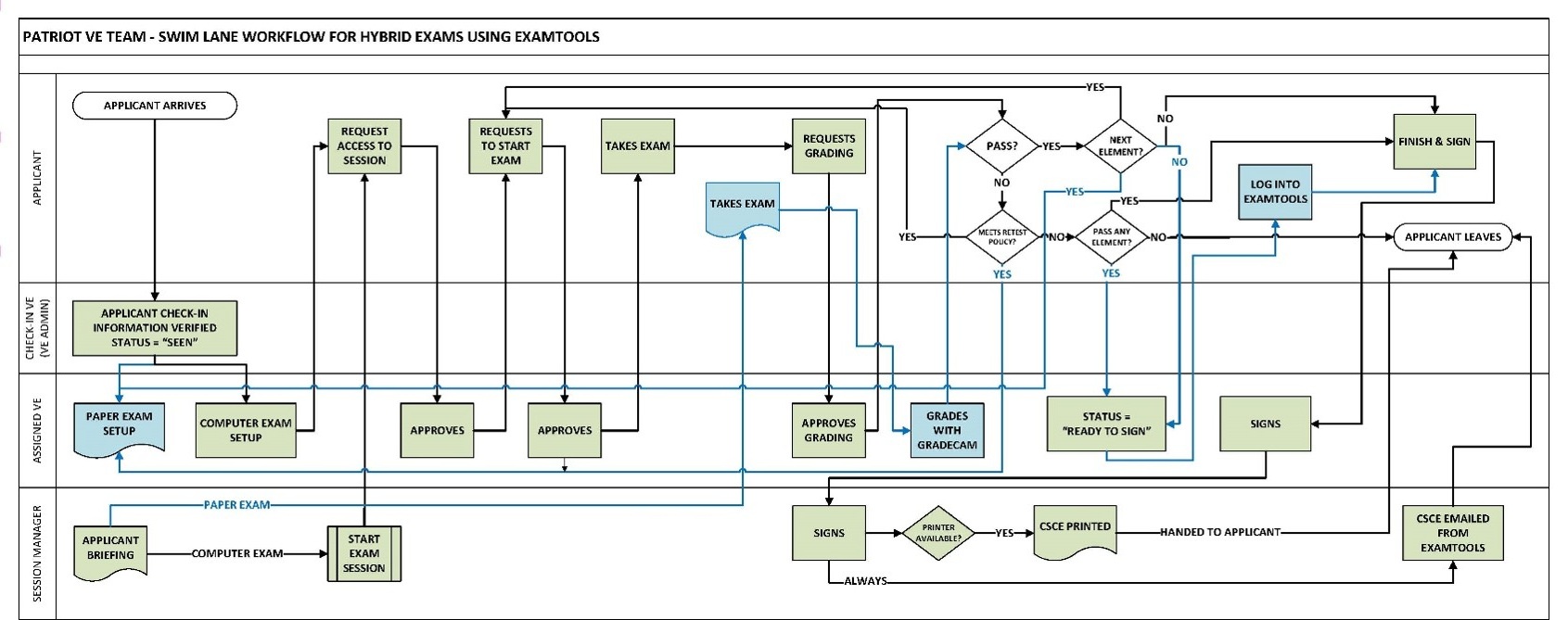
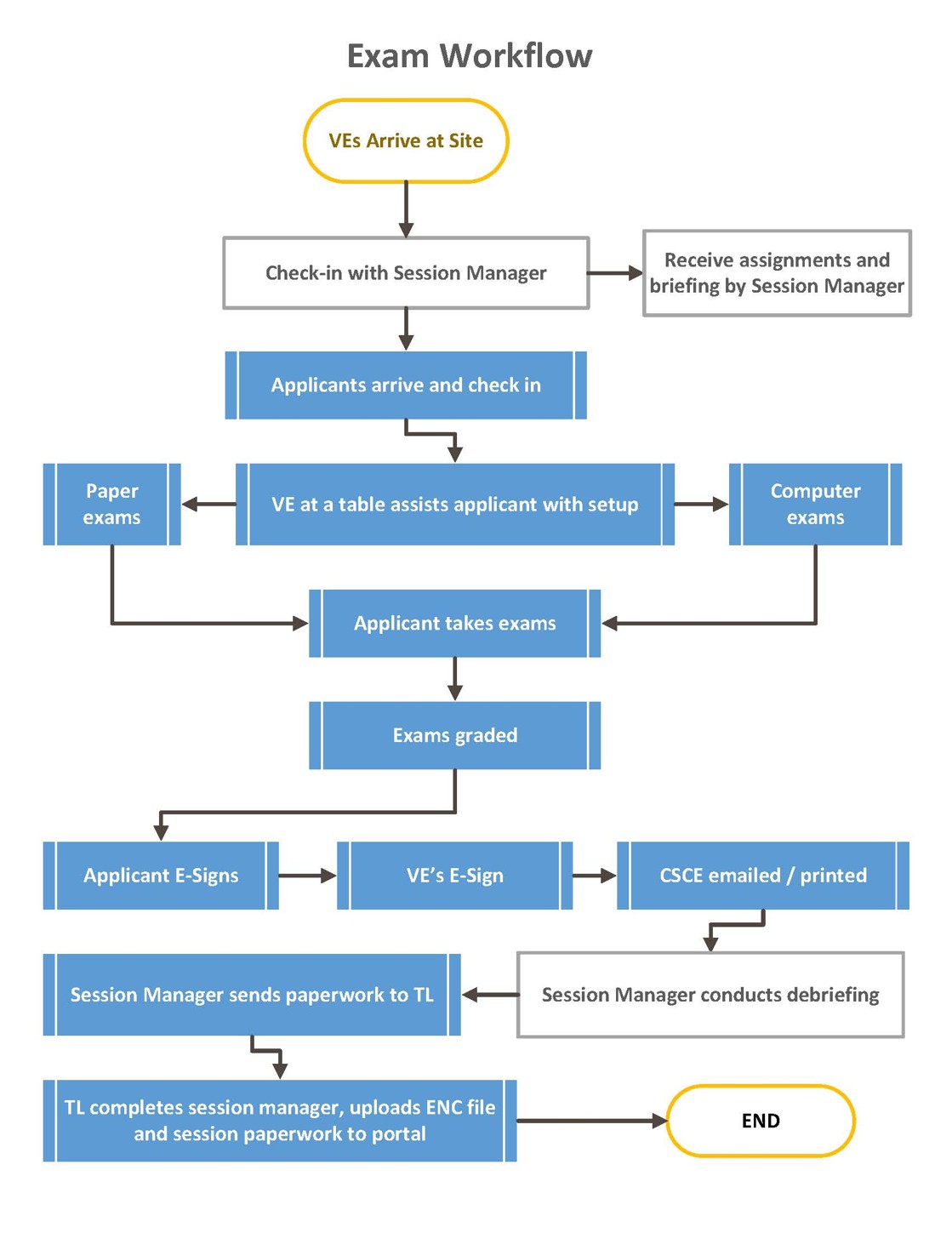
The diagram below shows the full session workflow. Lessons 4 through 6 walk through each phase in detail.
The pre-session VE briefing
A separate VE sign-in sheet is not required as long as all VEs present are logged in to ExamTools for the session — their participation is already recorded there. The Session Leader holds a mandatory briefing before the session opens covering:
- VE assignments and roles — who handles check-in (VE Admin assignments) and who monitors which tables
- Review of applicable procedures including the retest policy
- Any procedure or policy changes since the last session
- Recent ExamTools workflow or software changes
- Applicant flow through the facility and facility-specific rules
- How CSCEs will be delivered (printed, emailed from ET, or both)
Walk-in applicants: registering on the spot
Check-in assumes the applicant is already registered and appears in the ExamTools session. A walk-in — someone who didn’t pre-register online — needs to register before check-in can proceed. Registration happens on hamstudy.org, so the team should have a tablet or laptop on hand for walk-ins to register on.
Make sure they register for the correct session. A walk-in registering on hamstudy.org can easily land on the wrong session if they search on their own. Best practice is for a VE to navigate the applicant directly to your team’s session, using one of:
- Manually navigating to the correct session on hamstudy.org
hamstudy.org/sessions/[your team ID]- The direct registration link at the top of the session listing in ExamTools
Check-in workflow
| Step | Action |
|---|---|
| 1 | Verify registration information. Confirm name and ID match the ExamTools record. Verify address, email, phone number, and FRN. Correct anything that does not match. |
| 2 | Ask about pending FCC applications. If the applicant has a pending application, get specifics and pass them immediately to the Session Leader. Affects the file upload — see Lesson 6. |
| 3 | Confirm the felony question response. If YES, confirm it was intentional. Do not ask what the felony was. Advise they will receive additional instructions if they pass. No VE may offer FCC opinions. |
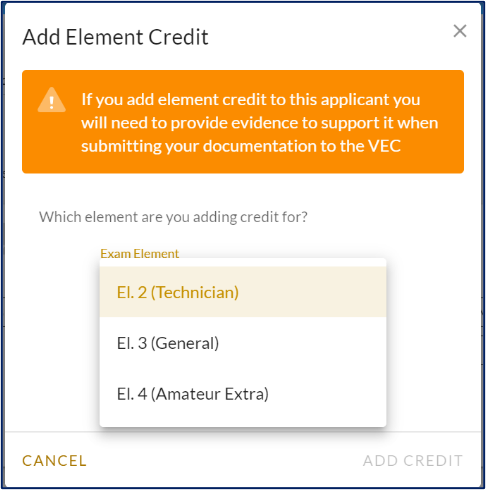
| 4 | Check for element credit. Verify proof per P&P App. 8 Sub-task 5-3. Coordinate with Session Leader on who enters it in ET. Must be applied before testing begins. |
| 5 | Paper or computer? Ask the applicant’s preference. Applicants may use their own device or a team-supplied device. Provide paper materials immediately if they choose paper. |
| 6 | Set status to SEEN. Once all steps are complete, use the applicant menu to change status to SEEN. Direct the applicant to a table. Note: SEEN is an informational marker, not a required condition — it does not block the exam from proceeding. It simply lets the Session Leader see that check-in has been completed for that applicant. |


References: ExamTools Documentation • Laurel VEC P&P
| ← Lesson 3 |